Learn how you can assist a borrower if they are having issues logging in to Blend, including password resets and unlocking locked or dormant accounts.
- Resend a borrower's activation link
- How a borrower can reset their password
- Password Requirements
- How to trigger a password reset email for a borrower
- Role permissions required to unlock and reset a borrower's password
- How to unlock a dormant borrower account
- Resetting Borrower MFA
 Note: This article applies to borrowers who log in to Blend using an email and password method. For consumer SSO (cSSO or Single Sign-On), follow your internal procedures or reach out to your internal support team.
Resend a borrower's activation link
Unactivated borrower accounts will not receive password reset emails. Making sure the borrower is activated is a good first step. Send a new invitation email to the borrower in case previous activation links have expired and ask the borrower to activate their account.
How borrowers can reset their password
Borrowers can reset their password. The process is the same as for lender users. If a borrower forgot their password, please help them follow the steps outlined in If you forgot your password.
Please note that password reset emails will only be sent to borrowers who have activated their accounts in Blend. Refer to check if the borrower has activated their account to learn more.
If a borrower reports they are not getting a password reset email, please refer to Troubleshooting Email Delivery to learn what to do.
For more details refer to Borrower Password Troubleshooting Guide. If you need further assistance, please contact Blend Support.
 Note: Password reset emails will not be sent to SSO borrowers.
Password Requirements
The password must include:
- 12 or more characters
- an uppercase letter
- a lowercase letter
- a number
- a special character (! # $ % @)
Sending a password reset email to a borrower
Loan teams with access to the Borrowers administration section in the Setup panel can trigger a password reset email for a borrower.
- Click Your settings
- Navigate to Setup
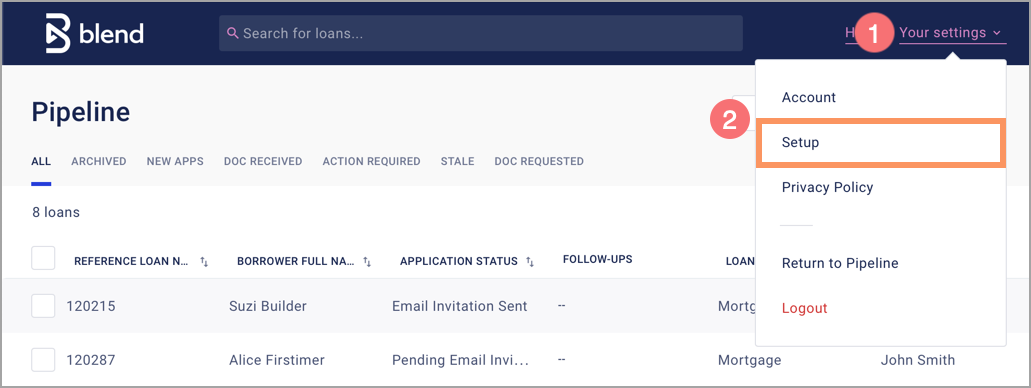
- In the Borrowers section, search for the borrower using the name or email
- Select the borrower
- Click Reset Password
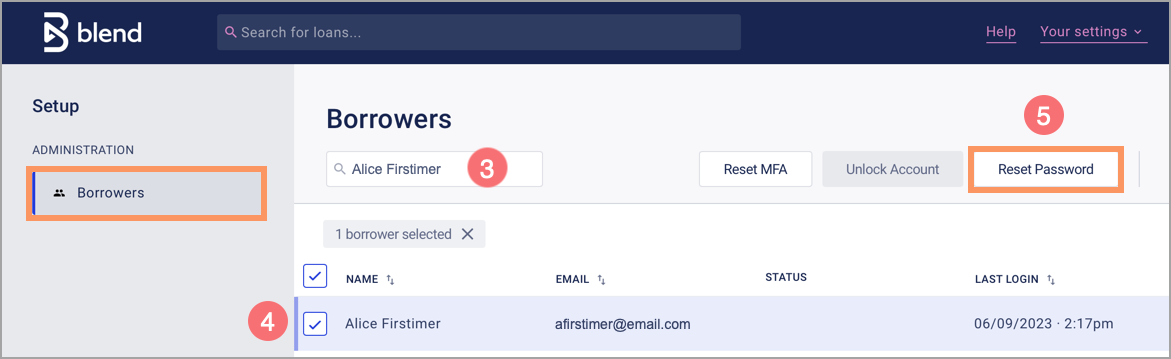
- Click Reset to proceed
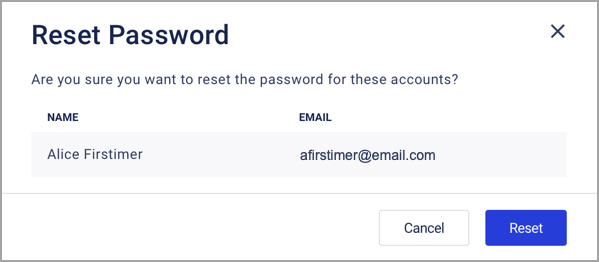
- Click Close
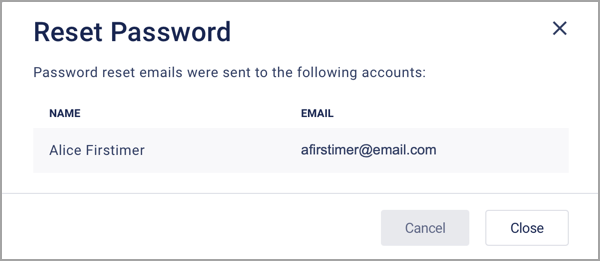
Ask the borrower to check their email and proceed with resetting their password.
Role permissions required to unlock and reset a borrower's password
The following role permissions are required for a lender to unlock and reset a borrower's password. Reach out to your Blend administrator to have your permissions updated if you need the ability to reset borrower MFA.
- Viewborrowers must be set to Always
- Resetborrowerauthentication must be set to Always
Lender users can also reset a borrower's MFA. Refer to Borrower Multi-Factor Authentication (MFA) to learn more.
Unlocking a dormant borrower account
Borrower accounts become dormant if they have not logged in to Blend in over 30 days. There are three ways to unlock a dormant borrower account.
Borrower logs in with current email and password
Ask the borrower to log in with their current email and password.
- Borrower navigates to the login page
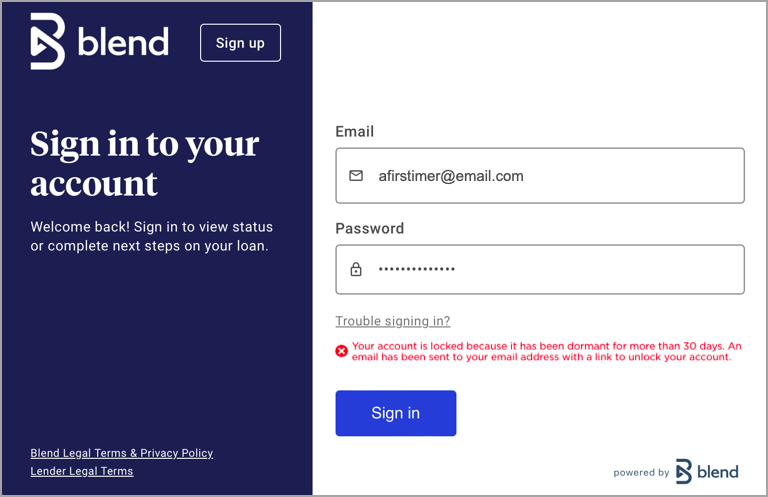
- Borrower enters credentials and clicks Sign in. The borrower will receive an email with a reactivation link.
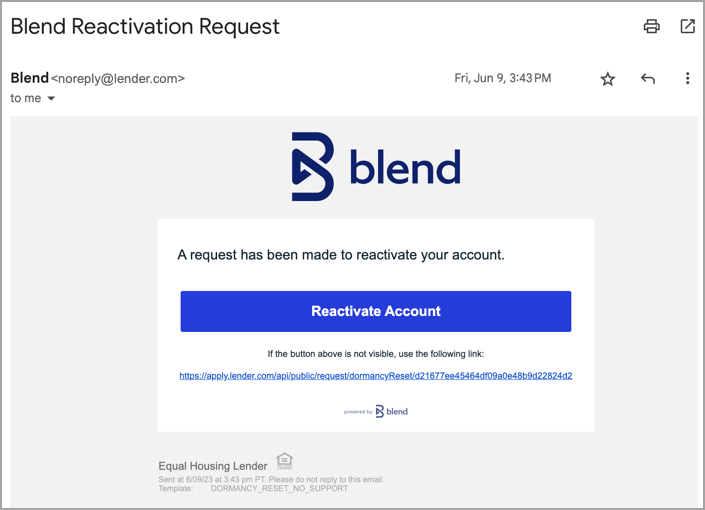
- Borrower clicks Reactivate Account.
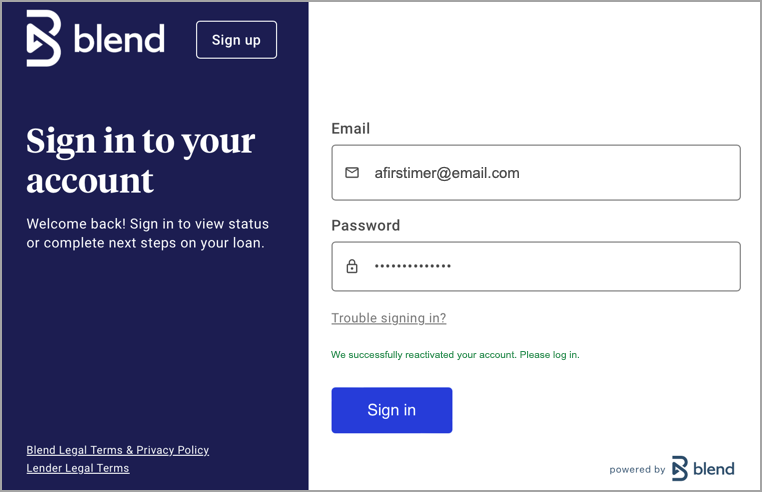
- The account will be reactivated and the borrower can continue to log in with their current email and password.
 Note
Note
- A “Reactivate Account” email is only sent when the correct email and password credentials are entered.
- If the email and password combination are entered incorrectly 3 or more times, the account will become locked and the password must be reset.
Borrower password reset
Ask the borrower to reset their password or assist them by sending a password reset email.
Lender unlocks the borrower's account
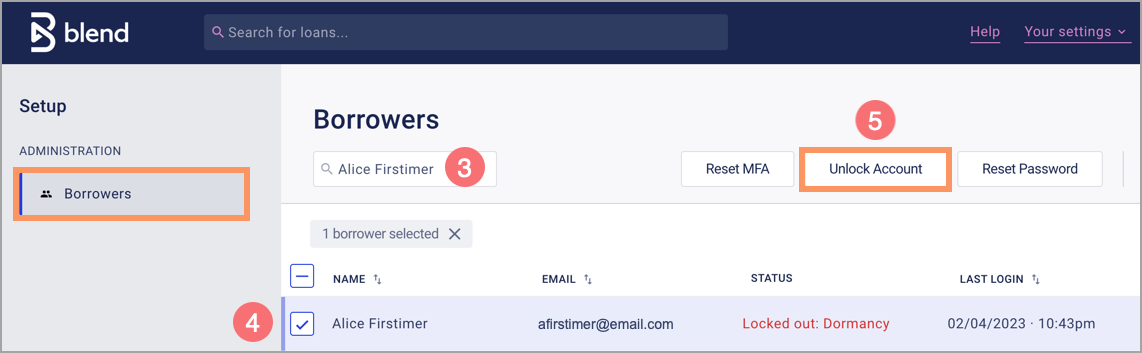
Lender users can unlock a dormant borrower account using the tools in the Borrowers administration section in the Setup panel.
- Click Your settings
- Navigate to Setup
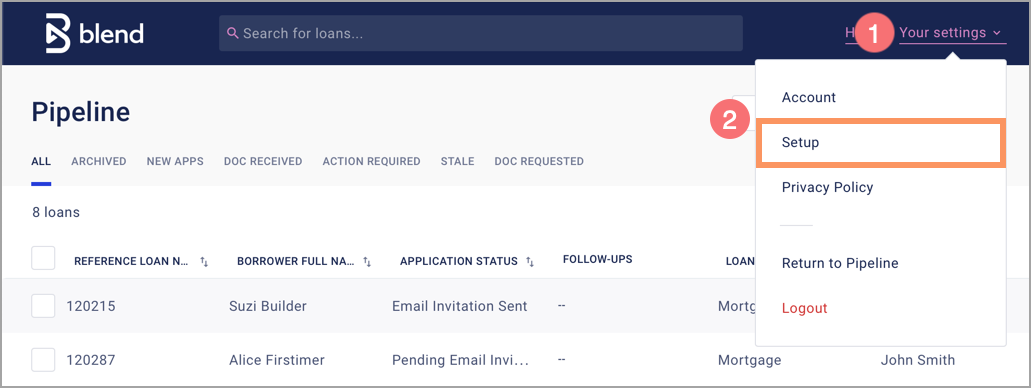
- In the Borrowers section, search for the borrower using the name or email
- Select the borrower
- Click Unlock Account
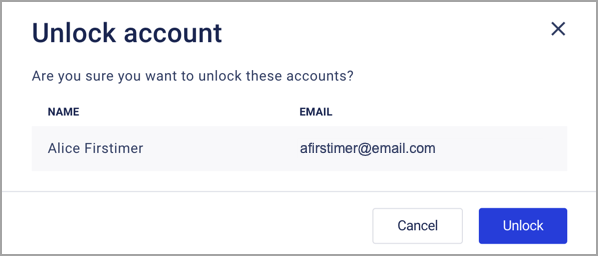
- Click Unlock to proceed
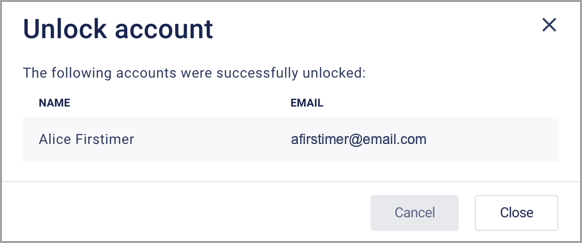
- Click Close to finish
Resetting Borrower MFA
Resetting the Multi-Factor Authentication (MFA) may be needed if a borrower changes their phone number or prefers a different verification such as email instead of text code.
Please note, that the borrower cannot reset their own MFA and this will need to be reset by a member of the loan team with access to the Borrowers administration section in the Setup panel can trigger a reset for the borrower's MFA.
To reset the borrower MFA please follow the steps below
Navigate to the “Your settings” section in the top right corner of the screen in Blend lending space
Once in the drop down, select “Set Up”
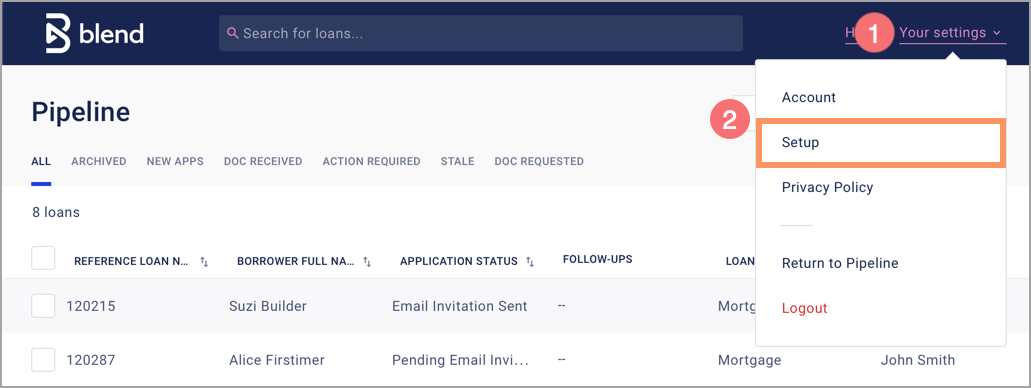
Click on Borrowers. From here, you can enter the borrower’s full name or email to find their account
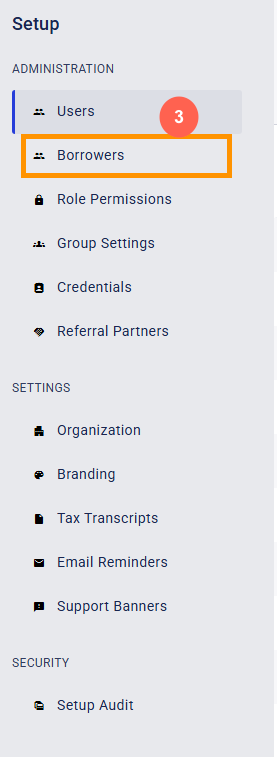
After searching and finding the borrower, find the “Reset MFA”

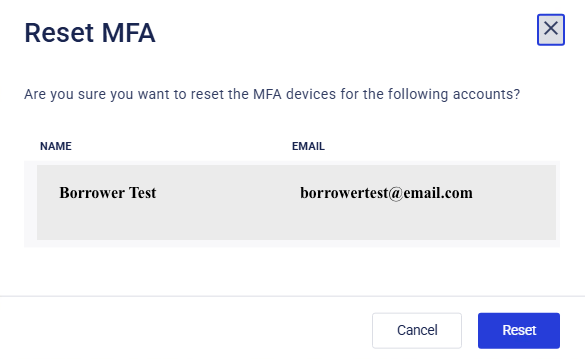
It will open a prompt and ask if you want to reset MFA, from here click “Reset”
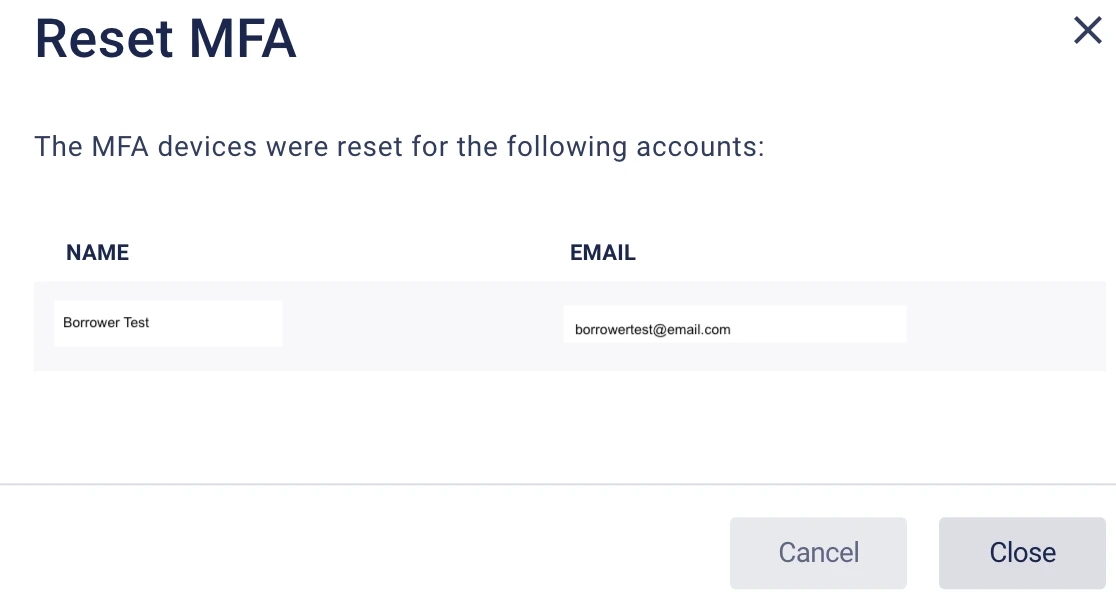
Once the reset has been completed. It will let you know that the reset has been completed
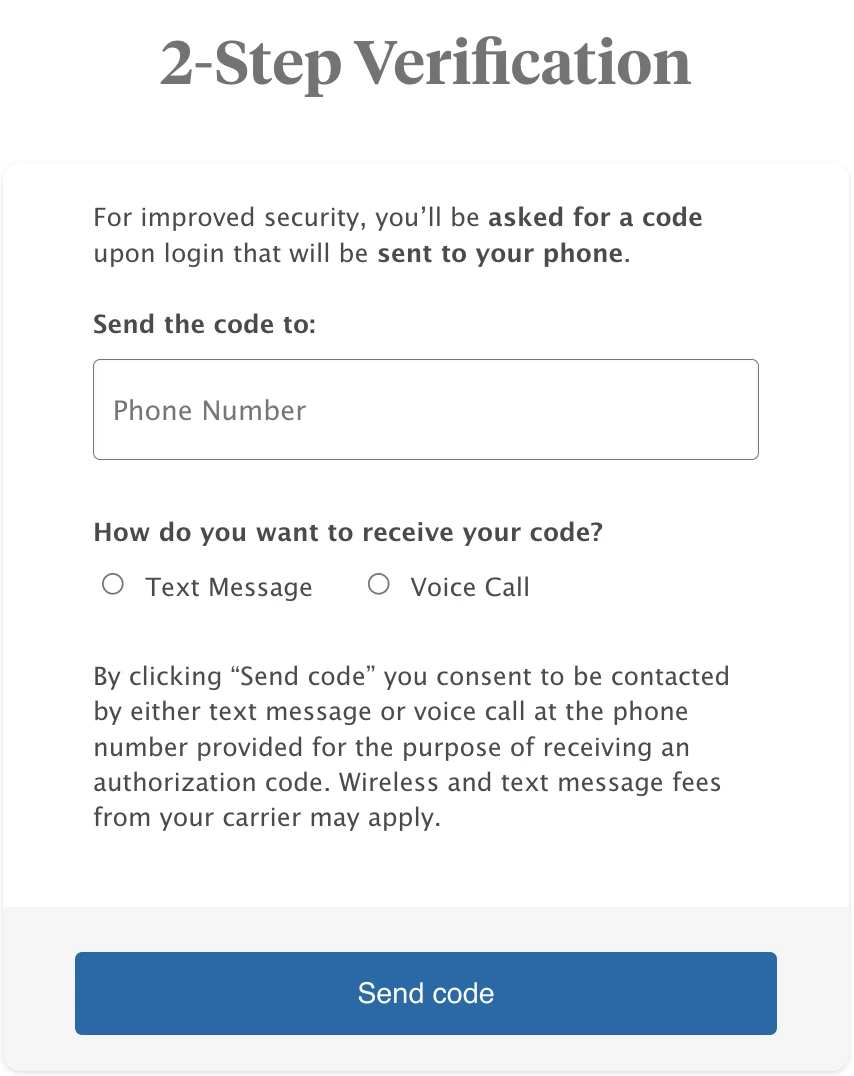
The borrower will need to attempt to log in again and will be prompted to enter in a new MFA method. The screen will look similar to the screenshot below.
Was this article helpful?
That’s Great!
Thank you for your feedback
Sorry! We couldn't be helpful
Thank you for your feedback
Feedback sent
We appreciate your effort and will try to fix the article